Showing posts with label How To. Show all posts

How to Connect Your iPod to WiFi

This post is for a friend of mine from work. I was going to just e-mail him these instructions, but I figured what the heck, this would make a good post, and will be my second attempt at any kind of guide. Helping my friend in this format also lets me use screenshots. I am going to use screenshots and information for Linksys routers, as they are the most common, but it should be easy to apply the information to any router.

Step 1 Get Everything Ready
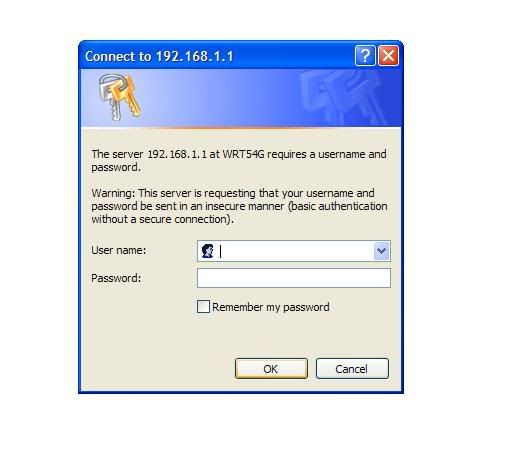
The first thing you are going to need is your router's SSID, or name, and its wireless key. To get to this open internet explorer and type the IP address "192.168.1.1" into the address bar. It will take you to a screen that looks like this:


For the bulk of Linksys routers, the default username is "admin" and there is no password. If you have changed these, and have forgotten what you used, no problem. On the back of the router will be a little red button. Get a ball point pen or a paper clip and press the button for about 15 or 20 seconds. When you release the button, the router will be restored to factory settings and the "admin" logon will now work.

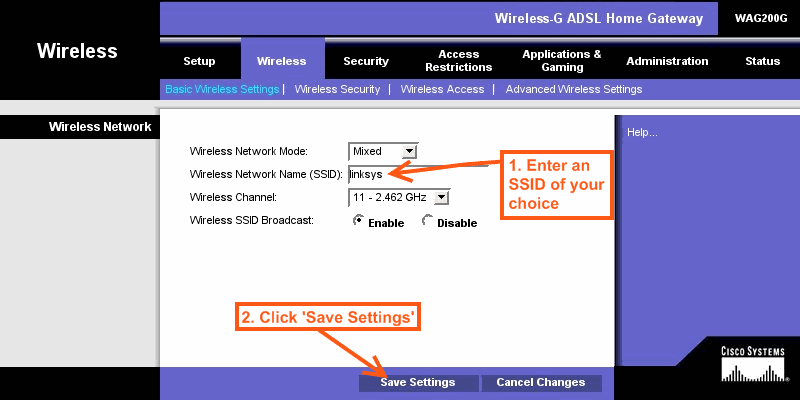
You will now be on a screen that looks like this:


Make note of the SSID. You will need it when we get to the iPod. Now click on the
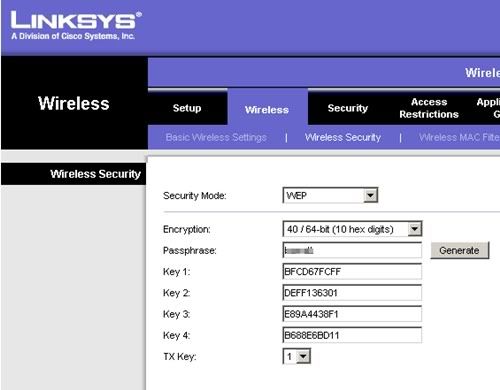
"Wireless Security" tab, and you will see this:


Write down the entry under "Key 1". This and your SSID are what you need to get your iPod connected.

Open the settings on your iPod touch. Select Wi-Fi. You will be taken to a screen that looks like the one on the left below:
screenshot3

There you will see your SSID from the router page. You may see more than one. That's okay. Select your SSID and then enter the password you wrote down. When every thing works, you will see a blue check mark next to your SSID and a Wi-Fi icon in the upper left corner of your screen. That's it. You are connected. Happy surfing!

How To: Bookmarklets on Your iPhone in Five Easy Steps

In case you don't know, a bookmarklet is a piece of javascript, saved as a bookmark, that provides a new level of functionality for the internet. Bookmarklets can be used for a variety of purposes, and new ones are being created all the time.
Back in the old days, before the 3.0 update, bookmarklets on the iPhone were kind of a pain. You had to find the bookmarklet, save it as a favorite on your computer's browser, then sync your device in order to get it transferred. Kind of a pain, expecially for those of you who do not sync your device on a regular basis. It definitely beat out the alternative, which was typing the javascript in manually.
Now we have the new OS and it's wonderful Copy and Paste features. The process, while still a little complicated, is easier and does not involve syncing to your computer anymore. Follow this step-by-step process to create very useful bookmarklets for your iPhone or iPod touch:


First, find the javascript for your favorite bookmarklet. Double tap the text and copy it to the clipboard.

Second create a blank open window. This can be done by entering "about:blank" in the address bar or by clicking the "New Page" button in Safari.
screenshot1

Third bookmark the blank page by pressing the "+" button. Go ahead and name your bookmarklet.
screenshot1

Fourth click the bookmark button. In the bottom left corner of your bookmarks page click the "Edit" button.

screenshot1 screenshot1

Fifth select your new bookmark. Double click on the address portion and the paste button will pop up. Click it and paste the javascript into this box.
screenshot1screenshot2
Congratulations! You have just created a bookmarklet.

Visit the App-lesauce Store

View our selection of iPhone and iPod touch accessories by clicking here.